
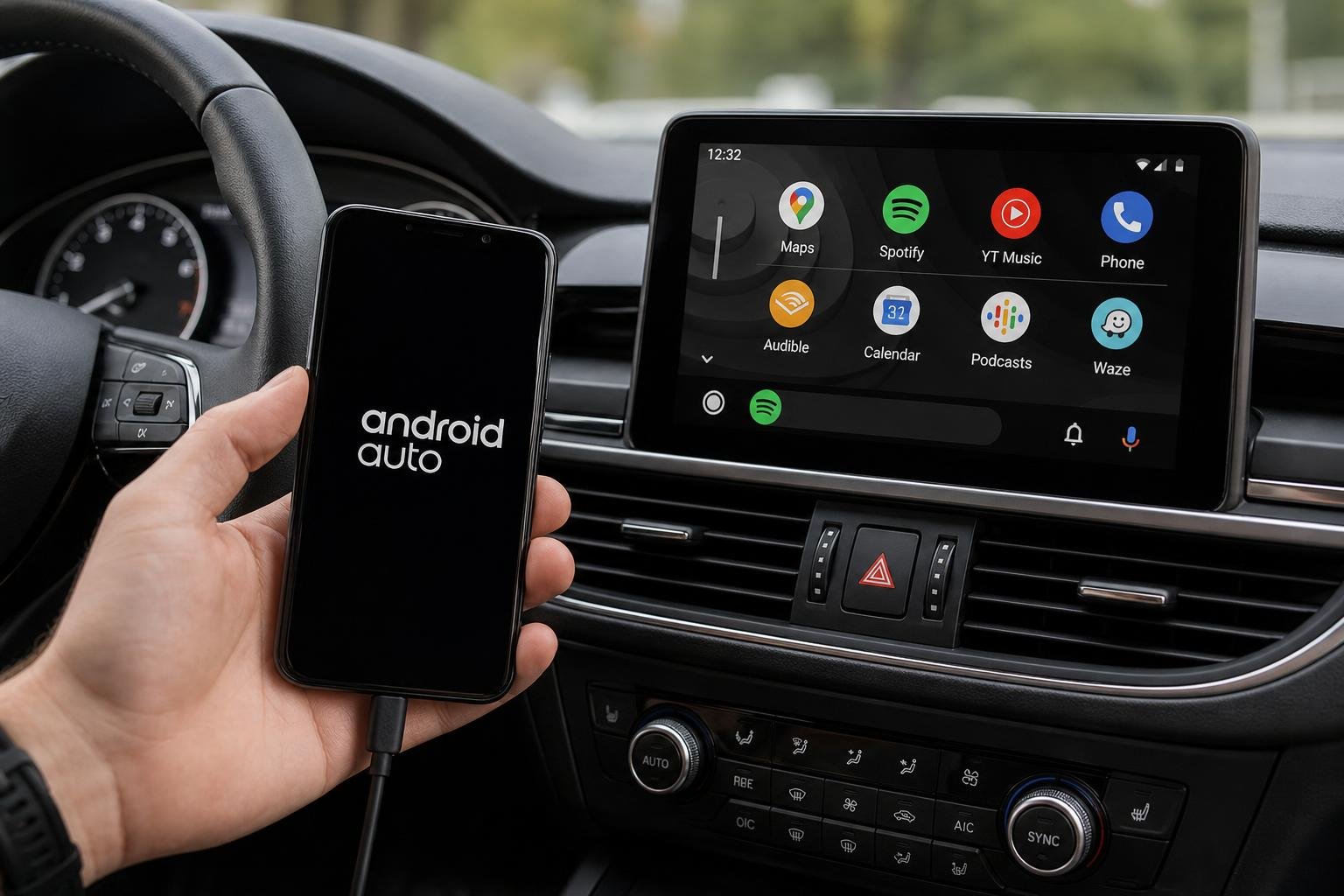

Android Auto is not a standalone feature inside most vehicles. It is a communication system linking an Android phone with the car’s infotainment hardware, using the vehicle’s display and controls to present navigation, music, calls and messages. That arrangement is convenient, but it also creates several points of failure.
A bad cable, incompatible USB port, outdated software or a confused wireless pairing can all produce the same symptom: Android Auto repeatedly disconnects, refuses to launch or fails to recognize the phone. The most effective troubleshooting approach is to work from the simplest physical causes toward software and compatibility problems.
Start with the USB connection
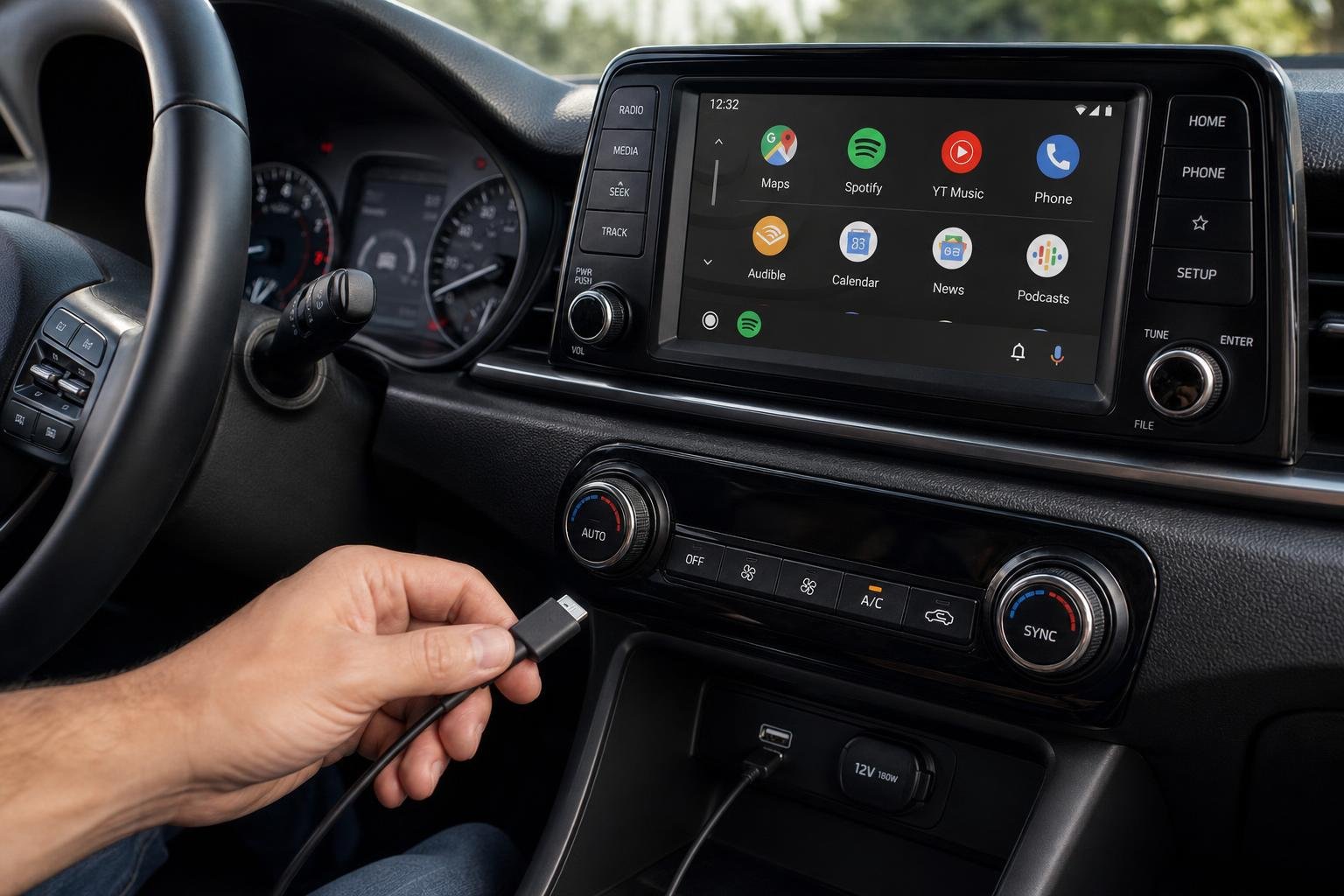
For wired Android Auto, the cable is the first component to inspect. A USB cable can charge a phone without reliably transferring data, which explains why the battery indicator may show that the phone is charging even though Android Auto does not start.
Google recommends using a high-quality cable shorter than 3 feet, ideally the one supplied with the phone. A damaged connector or frayed cable can cause intermittent failures, frozen interfaces and disconnections when the phone or cable moves slightly. Replacing the cable is usually faster and less expensive than assuming the vehicle’s infotainment system needs repair.
The vehicle’s USB port deserves equal attention. Cars with several USB ports may designate only one for smartphone integration, while others provide power only. Check the owner’s manual, then try the port identified for Android Auto. If multiple compatible phones fail to connect through a known-good cable, the vehicle’s USB hardware or infotainment system becomes a more likely suspect.
Understand what wireless Android Auto actually requires
Wireless Android Auto is more complicated than ordinary Bluetooth audio. Bluetooth and Wi-Fi work together to establish and maintain the connection, with Wi-Fi handling the higher-bandwidth communication needed for the Android Auto interface. A phone that can make calls through the car is therefore not necessarily connected to Android Auto.
Both the phone and vehicle must support wireless Android Auto; wired compatibility does not automatically include the wireless version. During setup, Bluetooth and Wi-Fi should be enabled, and Location Services should be active. Follow the vehicle manufacturer’s pairing procedure rather than treating the process like a basic Bluetooth connection.
If wireless Android Auto previously worked but now disconnects, remove the existing Bluetooth pairing from both the phone and vehicle. Restart the phone and infotainment system, then pair them again from the beginning. This clears a corrupted or incomplete connection record without immediately resorting to a full factory reset.
Software sits between the phone and the car
Android Auto depends on software on both sides of the connection. Google recommends keeping the Android phone updated, along with Google Play services and the system components responsible for Android Auto. On compatible phones, Android Auto is integrated into the operating system, so a separate app download may not be necessary.
The vehicle’s infotainment firmware matters as well. Automakers sometimes release updates that improve smartphone compatibility, connection stability or general system behavior. The update process varies widely: some vehicles download firmware over the air, while others require a dealer visit or a USB installation.
A problem that begins immediately after a phone or Android Auto update may be a temporary software compatibility bug rather than failing hardware. Restarting both devices is a sensible first step. It is also worth checking for a subsequent update before replacing equipment or paying for diagnosis.
Reset saved connections when Android Auto gets confused
Infotainment systems maintain lists of previously connected phones, and Android phones can store information about vehicles they have used. That history is helpful when it works correctly, but an old pairing can interfere after a phone upgrade, vehicle change or software update.
On many Android phones, Android Auto settings can be found under Settings, Connected Devices, Connection Preferences and Android Auto. The exact labels differ by manufacturer and Android version. Look for the previously connected cars list and forget the affected vehicle. If the problem continues, removing all saved vehicles and starting the pairing process again may clear the conflict.
The vehicle may also have its own list of authorized smartphones. Delete the phone from the infotainment system before pairing it again. This two-sided reset is more thorough than repeatedly tapping the connection prompt while old records remain stored in the background.
Why the symptoms can be misleading
Android Auto problems are often mistaken for phone defects because the phone may continue charging, playing audio or handling calls. Those functions use different parts of the vehicle connection and do not prove that the data link required for Android Auto is healthy.
User discussions also show why diagnosis can be difficult. Drivers have reported disconnections caused by slight cable movement, problems appearing after Android Auto or phone updates, and failures that temporarily disappear after restarting the infotainment system. These reports are not controlled technical tests, but they reinforce an important point: the same visible symptom can come from a cable, software, pairing record or vehicle system.
Android Auto is best understood as a projection and control layer rather than the car’s complete operating system. Background reporting by CNBC described both Android Auto and Apple CarPlay as phone software that uses the vehicle’s screen and controls, while the underlying infotainment system continues to manage the display hardware. That architecture lets phone software improve faster than many factory systems, but it also means the phone, cable, wireless link and vehicle firmware must cooperate.
Confirm compatibility before looking for a repair
Not every vehicle with a USB port supports Android Auto. Availability can vary by model, trim level and model year, and an aftermarket head unit may support only particular Android Auto functions or software versions. A car that supports wired Android Auto may not support wireless operation.
Check the vehicle manufacturer’s specifications and the infotainment system’s documentation, especially when buying a used car or connecting a newer phone to an older vehicle. Compatibility information is more useful than assuming that a physically similar vehicle has the same software features.
If a known-good cable, correct USB port, updated software and fresh pairing do not solve the problem, test another compatible phone if possible. If several phones fail in the same vehicle, contact the automaker or infotainment manufacturer. Have the phone model, vehicle model year, Android version and connection method ready; those details can help separate a compatibility issue from a hardware failure.
The sensible repair order is straightforward: check the cable and port, verify compatibility, restart both devices, update the software, reset saved pairings and then seek technical support. Perform every troubleshooting step while parked. In many cases, the problem is not a major vehicle fault but a weak physical connection or a software handshake that needs to be rebuilt.
Sources: Motor1 reporting on Android Auto troubleshooting; CNBC background on smartphone-based vehicle interfaces.

0 Comments