
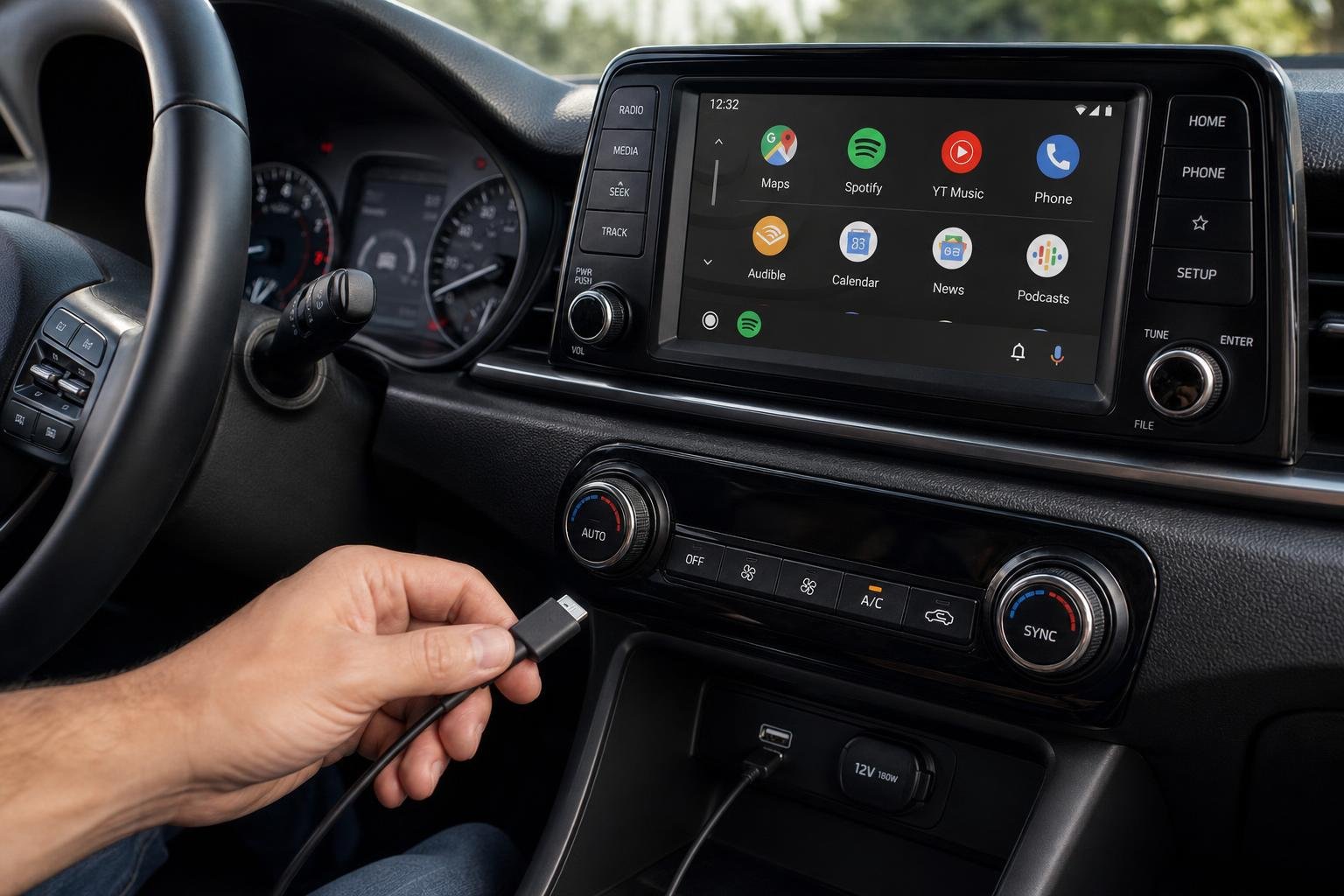

Android Auto is supposed to make the car’s infotainment system an extension of your phone. When the connection repeatedly drops, however, navigation disappears, music stops and calls can become unexpectedly complicated. The cause is usually less dramatic than a failed phone or infotainment screen, but finding it requires separating wired problems from wireless ones.
A useful first step is to identify the failure pattern. A wired connection that drops when the cable moves points toward a physical problem. A wireless connection that works inconsistently may involve Bluetooth pairing, Wi-Fi, battery management or software compatibility. That distinction can prevent drivers from changing settings that have nothing to do with the fault.
Check the USB cable and the vehicle’s port first
For wired Android Auto, the USB cable is the most accessible failure point. A cable can charge a phone without supporting reliable data transfer, so seeing the battery percentage rise does not prove that the cable is suitable for Android Auto. Internal damage, bent connectors and repeated flexing can also create intermittent disconnections.
A high-quality USB cable shorter than 3 feet is a sensible starting point. The cable supplied with the phone may work well, although any reputable data cable with an undamaged connector may be suitable. If the system disconnects when the cable is touched or when the phone shifts in the center console, replace it before investigating more complicated causes. Motor1.com’s Android Auto troubleshooting guide also recommends checking the cable and connection when wired Android Auto fails.
The car’s USB port deserves equal attention. Some vehicles have several ports, but only one may support smartphone integration. Other ports may provide power without carrying the data connection Android Auto needs. Try the designated port identified in the owner’s manual, then test another compatible port if one is available.
Dust or debris can prevent a connector from seating correctly, but cleaning should be done carefully. Avoid metal objects inside either port, and do not force a connector that feels loose. If multiple phones fail with a known-good data cable, the vehicle’s port or USB controller may need professional inspection.
Wireless Android Auto has more links to maintain
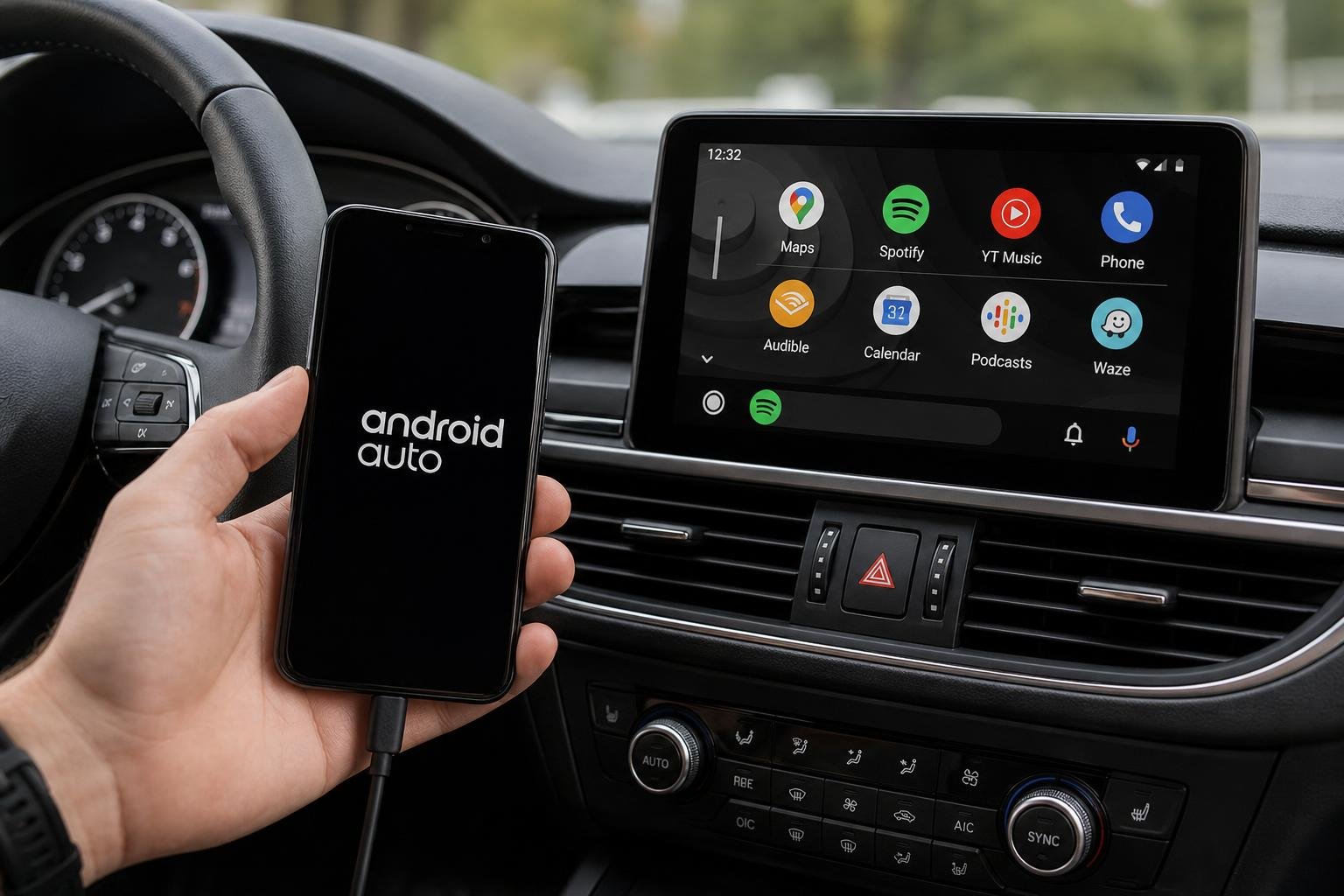
Wireless Android Auto is convenient, but it is not simply Bluetooth audio without the cable. Bluetooth is involved in the initial connection, while a separate Wi-Fi connection carries the larger stream of display, navigation and app data. A phone can therefore remain paired for calls while the Android Auto session itself has failed.
Confirm that the vehicle supports wireless Android Auto. Wired compatibility does not automatically mean the car has the hardware and software required for wireless operation. During setup, make sure Bluetooth and Wi-Fi are enabled and follow the pairing procedure specified by the vehicle manufacturer. Location Services may also be required during initial setup, depending on the phone and software configuration.
Personal hotspots and VPNs are worth testing as possible contributors to wireless instability. A hotspot uses the phone’s Wi-Fi hardware, while a VPN changes how network traffic is routed. Neither is guaranteed to cause a problem, but temporarily disabling them can help isolate whether another wireless function is competing with the Android Auto connection.
Update the phone, Android Auto and the car
Android Auto depends on several software layers: the phone’s Android operating system, Google Play services and Android Auto components, plus the vehicle’s infotainment firmware. A problem in any one of those layers can interrupt communication between the phone and the car.
Keep the phone, Google Play services and Android Auto components updated, and install any available updates for the vehicle’s infotainment system. Depending on the automaker, the car may update over the air, require a USB installation or need a dealership visit.
If the problem began immediately after an update, that timing is useful evidence, but it does not prove the update is defective. Restart both the phone and the infotainment system first, then check for a newer update. Some vehicles also provide a restart option for the head unit in the settings menu; the owner’s manual should explain the correct procedure.
Reset the connection instead of repeatedly trying it
Saved pairing information can become inconsistent after a phone replacement, vehicle software update or use with several cars. In that situation, repeatedly tapping the connection prompt may not repair the underlying pairing record.
On the phone, open the Android Auto settings and review the previously connected cars. Menu names vary by manufacturer and Android version, but the relevant option generally allows you to forget one vehicle or remove all saved vehicles. For wireless connections, also remove the car from the phone’s Bluetooth devices and delete the phone from the vehicle’s paired-device list.
After forgetting the connection, restart the phone and the infotainment system before pairing again. This resets both sides of the handshake rather than leaving one device with an outdated record. Clearing Android Auto’s cache is another reasonable preliminary step when the connection works intermittently. If that does not help, clearing the app’s storage or data is a more substantial reset: it can remove saved preferences and require setup again.
Battery settings can interrupt background services
Some Android phones aggressively restrict background activity to preserve battery life. That can interfere with an application or service that must remain active while Android Auto is operating, particularly during wireless use. The exact menu varies between Pixel, Samsung and other Android phones, but look under Settings > Apps > Android Auto > Battery for a setting such as Unrestricted or Allow background usage.
Navigation and media apps can have similar battery restrictions. Change those settings only if the symptoms point in that direction, such as a connection that drops after a predictable period rather than immediately. Battery management is one possible cause, not a universal explanation for every Android Auto failure.
When the problem is probably the vehicle
If a different cable, another compatible phone and a clean pairing produce the same result, the vehicle becomes the more likely source. Infotainment firmware, the USB port, a wireless module or the head unit itself may be involved. Community reports collected by ZDNET and discussions among Android Auto users illustrate how similar symptoms can come from different hardware and software combinations, so anecdotal fixes should be treated as diagnostic clues rather than guarantees.
Before contacting the automaker or phone manufacturer, record the phone model, Android version, vehicle model year, connection type and exact failure pattern. That information is more useful than simply reporting that Android Auto “doesn’t work.” Most importantly, perform troubleshooting while parked. A stable connection is helpful, but no setting is worth adjusting while the vehicle is moving.
Sources: Motor1.com, ZDNET, Merge Screens, and AddCarWidgets.

0 Comments